In today’s fast-paced business environment, efficiency isn’t just a luxury—it’s a necessity. Microsoft Excel has long been the backbone of data analysis and business operations, but many users are barely scratching the surface of its potential. By combining the power of VBA Macros with the emerging capabilities of Artificial Intelligence, you can transform your Excel experience from mundane to extraordinary.
New to macros? Start with our Excel Macro for Beginners: The Complete Step-by-Step Guide to learn the fundamentals before diving into advanced AI integration.
Understanding Excel Macros: The Foundation of Automation
Before diving into the AI integration, let’s establish a solid understanding of what macros are and why they matter. Macros in Excel are essentially recorded sequences of actions that can be replayed anytime with a single click. These sequences are written in Visual Basic for Applications (VBA), a programming language built into Microsoft Office applications.

Think of macros as your personal assistant that never gets tired, never makes mistakes, and works at lightning speed. Whether you need to format hundreds of cells, generate complex reports, or automate repetitive data entry tasks, macros can handle it all. The beauty of macros lies in their ability to transform hours of manual work into seconds of automated execution. For a comprehensive collection of ready-to-use macros, check out our free Excel macros library.
Key Benefits of Using Macros
- Time Savings: Automate repetitive tasks that consume valuable hours of your workday.
- Accuracy: Eliminate human error from routine data processing tasks.
- Consistency: Ensure uniform formatting and calculations across all your workbooks.
- Scalability: Process large datasets that would be impractical to handle manually.
- Accessibility: Create custom functions and user interfaces tailored to your specific needs.
Getting Started with VBA: A Quick Primer
If you’re new to macros, getting started is easier than you might think. Excel provides a built-in Macro Recorder that captures your actions and converts them into VBA code. Here’s a simple process to create your first macro:
- Open Excel and navigate to the Developer tab (if not visible, enable it through File > Options > Customize Ribbon).
- Click Record Macro and give your macro a descriptive name.
- Perform the actions you want to automate—formatting cells, applying formulas, creating charts, etc.
- Click Stop Recording when finished.
- Access your macro anytime through the Macros dialog or assign it to a button for one-click execution.
While the Macro Recorder is excellent for beginners, learning to write and edit VBA code directly opens up unlimited possibilities. Even basic programming knowledge can help you create sophisticated automation solutions that adapt to changing data and conditions. Explore our Excel macro tutorials for step-by-step guides.
Enter AI: The New Frontier in Excel

While macros handle structured, rule-based automation, Artificial Intelligence brings a completely different set of capabilities to Excel. AI can analyze patterns, make predictions, generate insights, and even understand natural language queries. Microsoft has been integrating AI features directly into Excel through tools like:
- Ideas (Analyze Data): AI-powered insights that automatically analyze your data and suggest charts, PivotTables, and patterns you might have missed.
- Copilot: Microsoft’s AI assistant that can help you write formulas, create visualizations, and answer questions about your data in plain English.
- Python in Excel: Integration that allows you to run Python scripts for advanced analytics and machine learning directly within your spreadsheets.
- Dynamic Arrays and AI Functions: New functions that leverage AI for text analysis, language translation, and data extraction.
The Power of Combining Macros and AI
The real magic happens when you combine the deterministic power of macros with the adaptive intelligence of AI. Here’s how this combination can revolutionize your workflow:
1. Intelligent Data Cleaning
Use macros to automate the mechanical aspects of data cleaning—removing duplicates, standardizing formats, filling in missing values—while leveraging AI to identify anomalies and suggest corrections that rule-based systems might miss.
2. Predictive Reporting
Build macro-driven reports that automatically pull data, format it, and then apply AI-powered forecasting to predict trends. Your weekly reports can now include forward-looking insights without additional effort.
3. Natural Language Interfaces
Create custom user forms with VBA that allow non-technical users to interact with your spreadsheets using natural language, with AI handling the interpretation and translation into Excel functions.
4. Adaptive Automation
Unlike traditional macros that follow fixed paths, AI-enhanced macros can make decisions based on patterns and context. Imagine a macro that not only processes your invoices but also categorizes them intelligently and flags unusual amounts for review.
Practical Example: AI-Enhanced Macro for Sales Analysis
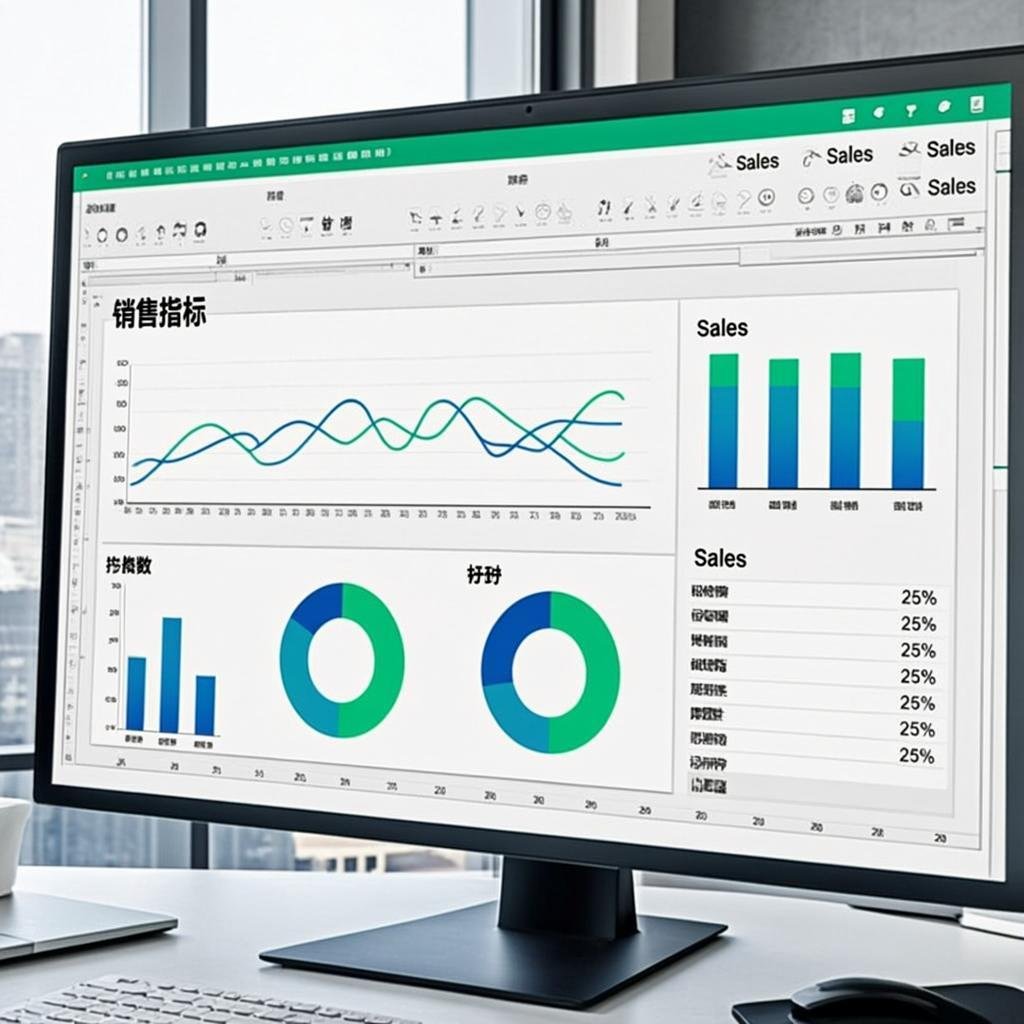
Let’s walk through a practical example that demonstrates this powerful combination. Suppose you have a monthly sales dataset and want to create an automated analysis report:
Step 1: Macro for Data Preparation
Create a macro that imports your raw sales data, removes duplicates, standardizes date formats, and creates a clean data table. This ensures consistency every month without manual intervention. Download ready-made Excel templates to jumpstart your automation projects.
Step 2: AI-Powered Analysis
Use Excel’s Analyze Data feature or Copilot to automatically identify trends, outliers, and correlations in your cleaned data. The AI might discover that certain products sell better on specific days or that there’s a correlation between discount levels and customer retention.
Step 3: Macro for Report Generation
Build a second macro that takes the AI insights and formats them into a professional report with charts, key metrics, and actionable recommendations. This macro can even send the report via email to stakeholders automatically.
Enhance Your Workflow with Add-ins
Beyond macros and AI, Excel add-ins provide another powerful way to extend functionality. Excel add-ins can improve your accuracy by reducing errors, make working with complex datasets easier, and help you create professional-looking documents with templates and graphics. When combined with macros and AI, add-ins complete the productivity trifecta for Excel power users.
Free Resources for Excel Automation
Ready to take your Excel skills to the next level? We’ve compiled a comprehensive collection of free Excel macros, functions, templates, add-ins, and VBA codes that you can download and start using immediately. These resources cover everything from basic automation to advanced data analysis techniques.
Best Practices for Success
As you embark on your journey to combine macros and AI in Excel, keep these best practices in mind:
- Start Simple: Begin with basic macros and gradually add AI components as you become more comfortable.
- Document Everything: Comment your VBA code thoroughly and maintain a log of your automation processes.
- Test Rigorously: Always test your macros with sample data before deploying them on critical workbooks.
- Stay Updated: Microsoft regularly adds new AI features to Excel—keep exploring and incorporating new capabilities.
- Consider Security: Be mindful of macro security settings and only enable macros from trusted sources.
Looking Ahead: The Future of Excel Automation
The integration of AI into Excel is still in its early stages, and the possibilities are expanding rapidly. We’re moving toward a future where Excel will understand intent rather than just commands, where spreadsheets will proactively suggest improvements, and where complex analyses will be accessible to everyone regardless of their technical background.
By mastering both macros and AI tools today, you’re positioning yourself at the forefront of this evolution. The skills you develop now will become increasingly valuable as these technologies mature and become more deeply integrated.
Conclusion
Excel has always been a powerful tool, but the combination of traditional macros with modern AI capabilities elevates it to an entirely new level. Whether you’re a financial analyst creating monthly reports, a project manager tracking deliverables, or a small business owner managing operations, this powerful combination can save you time, reduce errors, and uncover insights that would otherwise remain hidden.
Start exploring these features today, and discover how macros and AI can transform your relationship with Excel. The future of productivity is here—it’s time to embrace it.